During of this below website ->
http://blogs.computerworld.com/19341/android_40_upgrade_list#SamsungGalaxyTab7
It's seem my dear Galaxy Tab (SC-01C) won't be upgrade to Ice-cream sandwich.
May be it's time to look for another device..
My choices are Motorola Xoom or wait until Galaxy Nexus's price is getting little bit lower than now... I will let you know later ...
The old man.
Monday, February 13, 2012

Thursday, January 5, 2012
Add more languages support directly into .apk file
Oldman : "Recently my boss wanted me to add more languages support directly into my Android application .apk file without using my sourcecode. I don't know why he need that but I found the way to do this."
1.Go and install android-apktool
http://code.google.com/p/android-apktool/
2.Using apktool to decode the orignal .apk file (the file must not be sign yet or it will broke and can not be install later)
3.then xxxx folder was created. inside them place res/values-zz/strings.xml file where zz is your addition language (ex: ja for japanese, it for italy)
4. rebuild the resource.
5. then open xxxx-new.apk and xxxx.apk with zip manager program(or something like that) drag resource.arse file from xxxx-new.apk and drop into xxxx.apk
6. sign xxxx.apk with jarsigner and your key. Then your xxxx.apk file can be install and should be supporting for new languages....
http://developer.android.com/guide/publishing/app-signing.html
Note: I did this on my Debian x86 machine.
1.Go and install android-apktool
http://code.google.com/p/android-apktool/
2.Using apktool to decode the orignal .apk file (the file must not be sign yet or it will broke and can not be install later)
# apktool if xxxx.apk
# apktool d xxxx.apk
3.then xxxx folder was created. inside them place res/values-zz/strings.xml file where zz is your addition language (ex: ja for japanese, it for italy)
4. rebuild the resource.
# apktool b ./xxxx/ xxxx-new.apk
5. then open xxxx-new.apk and xxxx.apk with zip manager program(or something like that) drag resource.arse file from xxxx-new.apk and drop into xxxx.apk
6. sign xxxx.apk with jarsigner and your key. Then your xxxx.apk file can be install and should be supporting for new languages....
http://developer.android.com/guide/publishing/app-signing.html
Note: I did this on my Debian x86 machine.
Thursday, October 20, 2011
Ice cream Sandwich Emulator
Last night , I just heard that Ice cream Sandwich release news. So, I tried to updated the SDK.... After 30 minutes the SDK was updated and I tried to make a new ADV. It was reach to the welcome screen.
After retried almost 10 times, Then I could make it !!
These were what I did ...
1. Don't scale the Emulator's screen.
2. At Emulator RAM setting , increase RAM from 512 to 1024
3. Start Emulator and wait ...
Here are what I got !!


After retried almost 10 times, Then I could make it !!
These were what I did ...
1. Don't scale the Emulator's screen.
2. At Emulator RAM setting , increase RAM from 512 to 1024
3. Start Emulator and wait ...
Here are what I got !!


Tuesday, September 6, 2011
Quadrant Standard on Galaxy Tab Froyo vs Gingerbread
Old man : "Good news for today. Last time benchmark race between Galaxy Tab Froyo and Gingerbread didn't give result that show me the merit of updated my tab to Gingerbread. Today by using Quadrant Standard benchmark, it gave better score for Gingerbread tab... I hope I can count on this result."


Quadrant Standard result on Froyo Galaxy Tab.

Quadrant Standard result on Gingerbread Galaxy Tab.
Thursday, August 4, 2011
How to make app show full-screen on Galaxy Tab
Old man : "Hi all, Recently I just started to learning about how to development Android app on my Galaxy Tab. I learned a lot of thing and found one thing interesting . If you have source code that doest not support for big screen (just like tablet). May be we can make it to showing in full-screen on your device ..."

1. At AndroidManifest.xml file, add these two line
2. Clean you project and rebuild it. Then download .apk on your device.
3. If nothing wrong. This time your app should display with full-screen function on the device.
 Ref: I using Min3D for an example...
http://code.google.com/p/min3d/

original app just displays like small-size screen
1. At AndroidManifest.xml file, add these two line
<uses-sdk android:minSdkVersion="8" />
<supports-screens android:largeScreens="true" android:anyDensity="true"/>
2. Clean you project and rebuild it. Then download .apk on your device.
3. If nothing wrong. This time your app should display with full-screen function on the device.

Wow !!
http://code.google.com/p/min3d/
Tuesday, July 12, 2011
How to add your feeds to Pulse
Old man : "Hi there !! After updated to Gingerbread. My tab has installed Pulse as a free gift. I don't what is it for a while. (Forgive me I'm just an old man ;p )
After playing for a while. Now I can add my feeds to Pulse. I will show you ..."
First, Open Pulse...

Then press Menu button and touch on [Manage Sources]

At Manage Sources page, press Menu button again and touch on [Add source]

You will see something like this. Just touch on [Search] tab.

At textbox, fill your feeds URL (In my case, It was my figure blog feed : http://feeds.feedburner.com/Lemongrass-studioFigurePhotosCollectionBlog) then just click on [search icon] button.

If you feeds URL was right, It will appeared on search results.Just click on [+] button to add you feeds to Pulse.

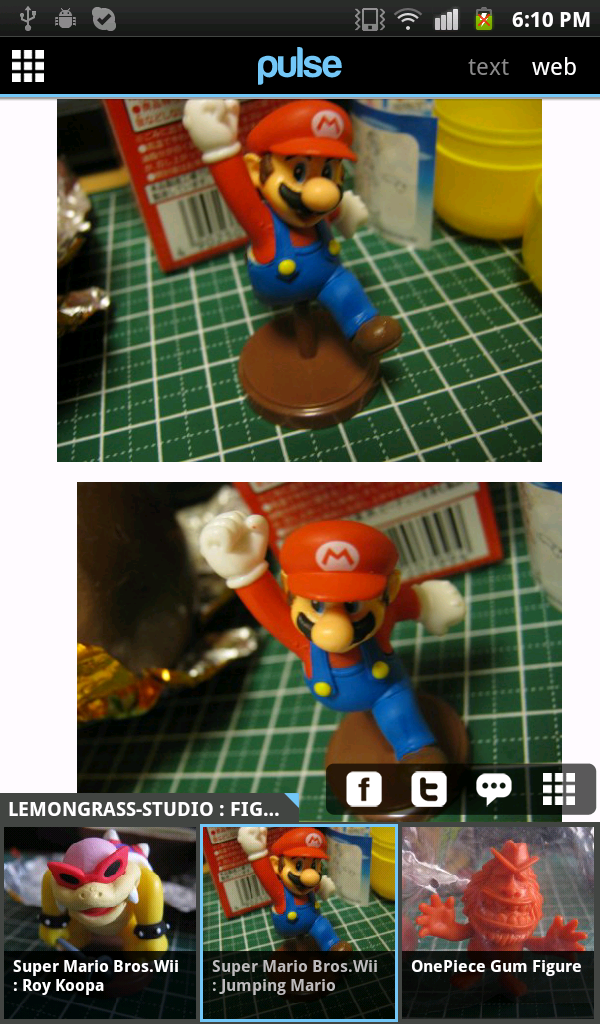
That is .. Now you can feed your own feeds here ...

Hmm...Nice reader ...

After playing for a while. Now I can add my feeds to Pulse. I will show you ..."
First, Open Pulse...

Then press Menu button and touch on [Manage Sources]

At Manage Sources page, press Menu button again and touch on [Add source]

You will see something like this. Just touch on [Search] tab.

At textbox, fill your feeds URL (In my case, It was my figure blog feed : http://feeds.feedburner.com/Lemongrass-studioFigurePhotosCollectionBlog) then just click on [search icon] button.

If you feeds URL was right, It will appeared on search results.Just click on [+] button to add you feeds to Pulse.

That is .. Now you can feed your own feeds here ...

Sunday, July 3, 2011
Benchmark race between Android's Froyo and Gingerbread on Samsung Galaxy Tab
Good day ladies and gentlemen.. Here is the fight between Android's Froyo and Gingerbread both on Samsung Galaxy Tab. As I said in last post that I felt updated Gingerbread is showing or display image slower than the original Froyo and sometimes... flick.
I using two Galaxy Tabs. One on the left is original Froyo and one on the right is just updated Gingerbread.Both of then running 0xbenchmark tool.
Let's see ...
As you can see, That is proved my suspicion. Anyway, It's not done on the same machine. So, I could not say anything. May be the problem just occur on my tab only. Who knows...
In detail,I won't say about the result in numbers but it seems that 3D benchmark gave an improved result (just a little bit anyway) but all of 2D benchmark results were down ...
Who had try this and gave better result. Please tell me :)
reference : http://0xbenchmark.appspot.com/
I using two Galaxy Tabs. One on the left is original Froyo and one on the right is just updated Gingerbread.Both of then running 0xbenchmark tool.
Let's see ...
As you can see, That is proved my suspicion. Anyway, It's not done on the same machine. So, I could not say anything. May be the problem just occur on my tab only. Who knows...
In detail,I won't say about the result in numbers but it seems that 3D benchmark gave an improved result (just a little bit anyway) but all of 2D benchmark results were down ...
Who had try this and gave better result. Please tell me :)
reference : http://0xbenchmark.appspot.com/
Subscribe to:
Posts (Atom)